
Introduction
We've spoken before about there being two types of people - those who are in command of technology and those who take commands from it. One way to take control of technology is to learn how to program one to do what we need it to.
This is a picture of the first computer I used:
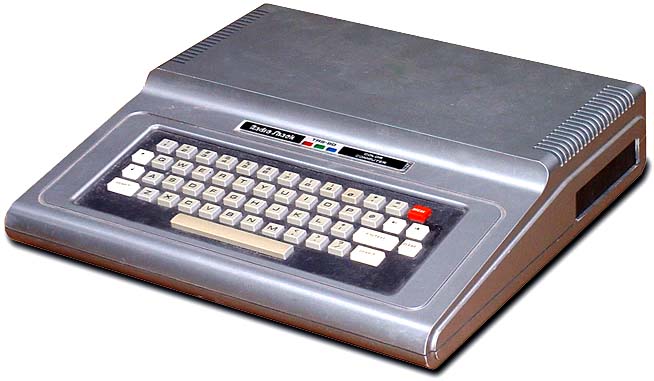
It came with a book of programs that we had to type in by hand every time we wanted to use one. The good thing is that I learned a lot about how computers work and it made technology less magical and more useful. Today is your first step in that direction.
Task
Programming is the process of writing instructions for a computer so that it can do useful tasks. A word you might be familiar with is Algorithm.
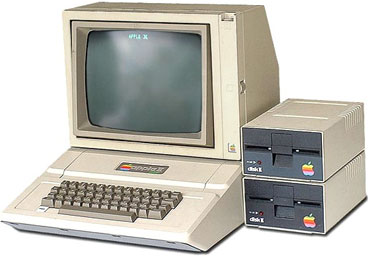
Today you will create a set of simple programs in a programming language called BASIC. This laguage is easy to learn and will make it easier to learn other languages like Python.
Process
Go to: http://www.calormen.com/jsbasic/
INEQUALITY CHECKHER
10 HOME
20 INPUT "First Number: "; A
30 INPUT "Second number: "; B
40 IF A>B THEN PRINT B; " is greather than " ; A
50 IF A<B THEN PRINT "The numbers are equal"
60 IF A=B THEN PRINT A; " is greather than " ; B
70 END

Here is a list of the functions we will be using today:
- END - Terminate program cleanly
- HOME - Clear text display
- PRINT - Shows the output
- INPUT - Asks for information from the user.
- * Multiplication
- / Division
- + Addition
- - Subtraction
- Any text you see in red should be typed into the code box.
- PROGRAM #1 - Hello World!
- 10 PRINT "Hello World"
- Run the program.
- NOTICE: We typed 10 Print "Hello World" into the white code box, but why did it only show the word HELLO WORLD?
- PROGRAM #2 - WELCOME!
- 10 HOME
20 TEXT
30 INPUT "WHAT IS YOUR NAME? "; NAME$
40 PRINT "HELLO, " NAME$
50 END - Run the program.
- NOTICE: In Line 40 we told the program to print HELLO, NAME$, but it actually printed what you typed in instead of NAME$.
- TRY THIS: Go to the end of line 30 and press enter. Add line 35, like this:
- 35 PRINT ""
- Run the program again. Did you notice a slight difference in how the program diaplyed in the black program box?
- PROGRAM #3 - ADDITION
- 1 HOME
10 INPUT "First Number = "; A
20 INPUT "Second Number = "; B
30 C=A+B
40 PRINT "The sum of the two numbers is " C
50 END - Run the program several times, trying different types of numbers.
- TRY THIS: Change the program to make it a subtraction program. (Remember to change the word "sum" to "difference")
TRY THIS: Change the program to make it a multiplication program. (Remember to change the word "difference" to "product")- TRY THIS: Change the program to make it a division program. (Remember to change the word "product" to "quotient")
- PROGRAM #4 - ANGLE CHECKER
- 1 REM Angle Checker by Mr. Berry
10 HOME
20 INPUT "Type in the measure of an angle to find out what kind of angle it is: "; A
25 PRINT ""
30 IF A<90 THEN PRINT "This is an ACUTE angle"
40 IF A=90 THEN PRINT "This is a RIGHT angle"
50 IF A>90 THEN PRINT "This is an OBTUSE angle"
55 PRINT ""
60 INPUT "Test another angle? 1 = YES 2 = NO "; B
65 PRINT ""
70 IF B=1 THEN GOTO 20
80 IF B=2 THEN GOTO 90
90 PRINT ""
95 PRINT "USER HAS ENDED PROGRAM"
99 END - Run the program several times, trying different types of numbers.
- Q: How does the program know whether the angle is acute, right, or obtuse?
- NOTICE: On lines 70 and 80, the program uses the GOTO command. This is why line numbers are important in BASIC so we can easily tell the program where to go.
- PROGRAM #5 - MULTIPLICATION PRACTICE
- 5 REM Multiplication Tables, by Mr. Berry
10 HOME
20 x=int(rnd(1)*10)
30 y=int(rnd(1)*10)
40 PRINT "What is "; x; " x "; y; " ?"
50 INPUT ""; A
60 IF A=x*y THEN GOTO 90
65 PRINT ""
70 PRINT "Incorrect, try again..."
75 PRINT ""
80 GOTO 40
90 PRINT ""
95 PRINT "CORRECT!"
96 PRINT ""
99 GOTO 20 - Might as well practice some multiplication facts while we're here, eh? ;)
Evaluation
CLICK HERE TO TAKE THE BASICS OF BASIC SURVEY.
Credits
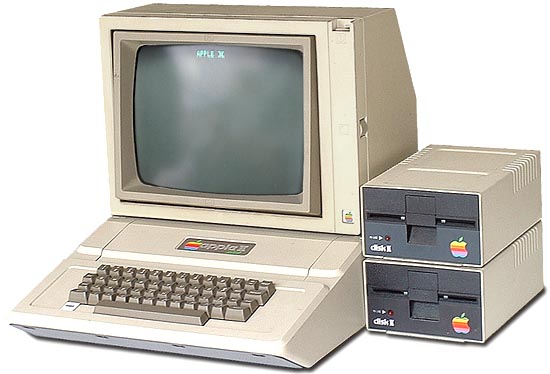
Apple II Image: http://oldcomputers.net/pics/appleii-system.jpg
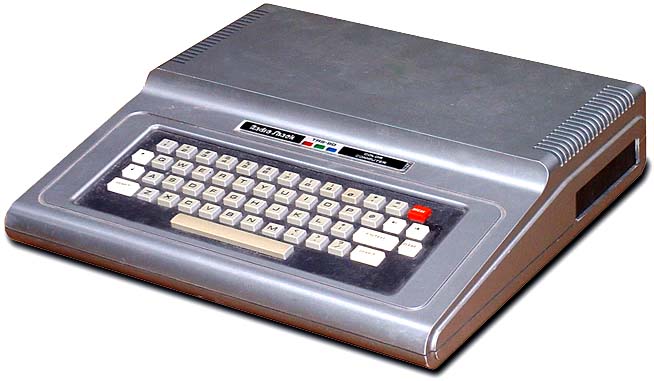
Coco 2 image: http://www.oldcomputers.net/pics/coco1.jpg
Applesoft BASIC Website: http://www.calormen.com/jsbasic/
Teacher Page
Mr. Kyle Berry
2016-17 marks my 14th year of teaching.
Giving kids a grasp of how technology works is a key part of building up the society and workforce of the future.
And, yes, I've fished in a tuxedo before. Top that.
[img_assist|nid=41290|title=Fishing in a Tux|desc=|link=none|align=left|width=1751152719|height=1751152719]